How to sync Garmin dives into SSI (MySSI)
From linking accounts to verifying the write, step by step. About ten minutes the first time; after that each sync is one click.
Dives recorded by a Garmin Descent do not appear in the SSI MySSI logbook by themselves — there is no official data link between the two companies, so most people retype every dive from the watch by hand. This guide automates that with SSI Sync, with every write confirmed by you first.
What you need
- A Garmin Connect account with your dives already synced from the watch.
- The username and password for an SSI (MySSI) account.
- Nothing to install, and no file to export from the watch.
Step 1: create an SSI Sync account
Choose "Create account" on the home page and enter an email and password. These credentials are for SSI Sync only; they are unrelated to your Garmin and SSI accounts and are never used to sign in to either.
Step 2: link Garmin
Press "Link Garmin" on the overview page and enter your Garmin Connect credentials. The sign-in happens on Garmin's own page and your password never passes through us — we receive only an authorisation token used to read your dives.
If two-step verification is enabled on your Garmin account, you will be asked for the code next.
When automatic sign-in is blocked, use the "paste URL" route instead: finish signing in on Garmin's own
page, then paste back the full address containing ticket=.
Step 3: link SSI
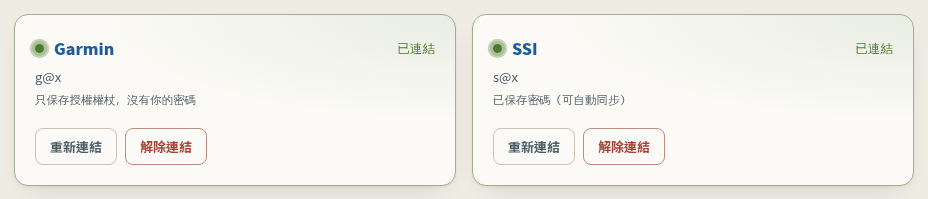
On the same page press "Link SSI" and enter your my.divessi.com credentials. There is one choice worth a moment's thought here: whether to save the password.
- Don't save: the password stays in memory for this session only and is gone when you close the browser. You retype it on every sync.
- Save: stored encrypted, deleted when you unlink. Required for background checks, because you are not there when they run.
With both linked, the overview page looks like this:
Step 4: check which dives are missing
Press "Check for new dives". Both sides are read and compared. Nothing is written during this stage — it only reads and compares.
A dive is treated as the same one when it is on the same day, the maximum depth is within 1.5 m, and the entry time is the closest match. Combined with a ledger in our own database, any single Garmin dive is written to SSI exactly once, so pressing "Check for new dives" again never causes a duplicate.
Step 5: confirm what gets written, dive by dive
This is the most important step. Every dive expands to show the exact value each field will be written with, and where that value came from.
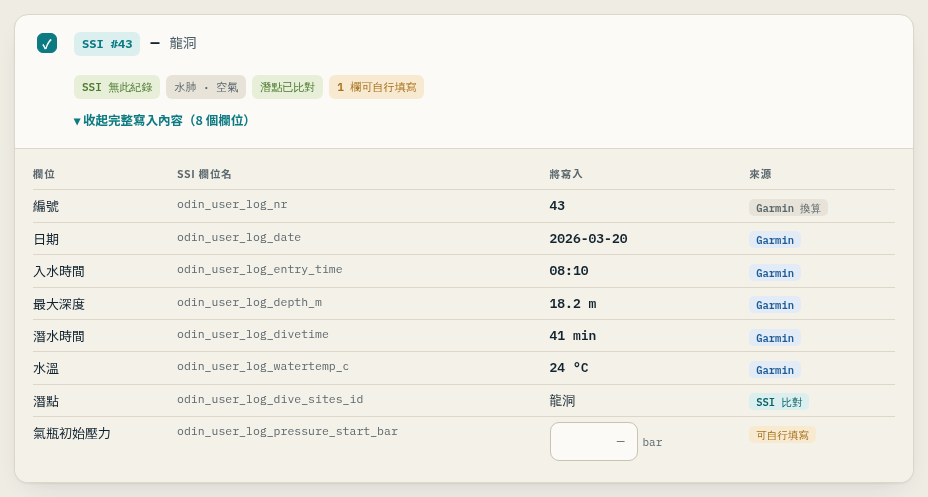
A few things worth noting:
- You choose the dive site. We use the GPS coordinates to suggest sites you already have, but never fill it in for you. A wrong site is worse than a blank one, so this is deliberately not automated, and a dive without a site is not submitted.
- Some fields are empty. Tank pressure, tank volume and weights cannot be measured by a dive computer. Fill them in here or leave them blank — we will not invent a number.
- Untick anything you do not want. It is dive by dive, not all or nothing.
Step 6: confirm and sync
The confirmation bar at the bottom shows how many dives will be added. When something is still missing — a dive without a site, for example — the button is disabled and tells you what is outstanding.

What happens next is fixed, and no step can be skipped:
- A full backup of your existing SSI logbook is taken. If the backup does not succeed, the write never starts.
- Dives are written one at a time.
- Each one is read back from SSI immediately and compared. If it does not match, the remaining writes stop and you are told which dive had the problem.
If something still looks wrong afterwards, that backup restores the state from before the write in one click.
After every dive trip
Once the watch has synced to Garmin Connect, come back and press "Check for new dives". If you saved your SSI password you can also enable background checks in settings — but they only check, they never write. New dives still wait for your confirmation.
Compared with the alternatives
| Approach | Upside | Downside |
|---|---|---|
| Typing into MySSI by hand | No third party to trust | A dozen fields per dive; easy to miss or mistype |
| Export UDDF and import | Portable format | MySSI offers no UDDF import |
| SSI Sync | Automatic matching, per-dive confirmation, backup and read-back verification | You hand Garmin authorisation and SSI credentials to a third-party tool |
That last cell is the honest one: you do have to trust this tool. So we spell out exactly what is stored and what is not, and the SSI password can be left unsaved.
More questions
"Will it touch dives I already have?", "What about verified dives?", "Which watches are supported?" — the FAQ answers those in full.